
CONTENT RECIPE
INTRODUCTION
Let’s clear up some terms here first. A blog is your website – the place that hosts your content. Blogging is writing your content. The content that you write are known as posts. These are posted to your blog. Got it.
Your content goes here. Edit or remove this text inline or in the module Content settings. You can also style every aspect of this content in the module Design settings and even apply custom CSS to this text in the module Advanced settings.
POST RECIPE
Intention Setting
Why are we writing this blog piece? Which 1 main keyword are we targeting for this article? 
What is the Call to Action we have in mind? If not demo booking – would it be newsletter sign up?
Writing The Piece
0. Content & Copy Checklist
- [ ] Is the Headline Urgent, Unique, Useful, and Ultra-specific?
- [ ] Does the headline make user curious to click and dive deeper?
- [ ] Have you defined the concepts clear?
- [ ] Does it have a data or metric to back it up?
- [ ] Is it inspiring? Does it have examples, ideas, and thoughts they never thought?
- [ ] Is it instructional? Like so practical that someone can map out to go step-by-step to understand and take an action?
- [ ] Is it immediately actionable?
- [ ] Is it useful (utility)? Can they use it in their job?
- [ ] Is it fresh? Does it at least tell something new or insightful?
- [ ] Can the reader take at least one thing or idea with them?
1. Title and Meta Description
- [ ] Title should contain your primary keyword
- [ ] Meta Description is more of a user experience, click through rate indicator – are you enticing your potential reader to learn more?
2. H1 Heading
- [ ] Should contain your primary keyword
- [ ] There MUST only be one H1 in the entire page/article – like the top of a pyramid!
- [ ] See this image for a quick structure overview
3. Introduction
- [ ] Don’t bury the lede––get to the point quickly.
- [ ] Open with a question, raise the stakes, lead with a personal narrative
- [ ] Work your primary keyword naturally into the first paragraph
- [ ] Use active language. (Never passive.)
4. Include a table of contents (Optional)
- [ ] Include jump links to each section
- [ ] Items in table of contents should be based on related keywords or integral to article structure
- [ ] Add a quick call to action here if relevant (incase we have some impatient readers that want to get to the goods!
 Sign up for our demo)
 - [ ] For list posts (like “appcues competitors”) make sure Userpilot is first
5. H2 Headings
- [ ] Directly from each item on your table of contents
- [ ] Should contain the main keyword or close variation of it but getting into more of the details
- [ ] Ex. H1 is “Marketing Reporting”, H2s might be “Marketing Reporting For Digital Channels”
6. Body Copy (Under each H2)
- [ ] Write in short sentences
- [ ] Add main keyword in when relevant but less necessary compared to the headings
- [ ] Frequent line breaks-make the post more readable
- [ ] Add bullets or numbered lists any time there’s a listing of any sort
- [ ] Add quotes from subject matter experts and cite them––this makes your content more authoritative
- [ ] At least 2 relevant inner links to most important menu pages ex. https://userpilot.com/solutions/user-onboarding-software
- [ ] Add relevant inner links to other blogs where helpful to user
7. H3 Headings
- [ ] H3s should go a level deeper into your H2s, i.e. your H2 might be “Google Analytics Reporting,” and your H3s might be “Google Analytics Traffic Source Report”
8. To “dofollow” or “nofollow”?
- [ ] “dofollow” means we’re allowing Google to pass on some link juice
 to the site that we’re linking
 - [ ] As a rule of thumb, if we are citing high DR sites like Harvard Business Review – it should be fine for a “dofollow” since they’re already an authoritative site
- [ ] The exception is if it’s for a competing page (in terms of keyword)
- [ ] Try not to link competitor website in general, even if they’re “nofollow”
9. Rich Media
- [ ] Images, infographics, video help with proving a point or illustrating a concept – also spices things up

- [ ] Google can’t actually “see” what’s on the photos though: so you need to include alt text (describe what the image is showing)
- [ ] and name your images appropriately. For example, an image like this emoji →
 may be named “cowboy-emoji.jpg”
10. The End!
- [ ] Include an FAQ section at the end of the post if you think it may be helpful for quick fire questions and answers
- [ ] Or a summary bullet point list
- [ ] Always include a call to action – they’ve made it all the way to the end, what should they do now? Book a demo?
Final Checks
Try to take a step back and ask yourself “if I were the target audience and I was looking for an answer to my original question – would I find it here easily?”
Check for organization, is it easily scannable, is it intuitive to navigate? Ex. If someone was searching for a step by step how-to, do you have a numbered list that is easy to follow?
HEADING TEXTS
What are Heading Tags?
We normally think of headings as a method of styling the fonts – bigger size font, bold fonts or italics. But while using headings in HTML, we structure it using heading tags. Heading tags are HTML markup used for differentiating headings and sub-headings from the rest of the text in your content. As Google describes it in it’s Starter Guide,
Heading tags (not to be confused with the HTML tag or HTTP headers) are used to present structure on the page to users. There are six sizes of heading tags, beginning with <h1>, the most important, and ending with <h6>, the least important.
So you have the maximum size heading at H1 and this is usually reserved for the first level heading of a post or page or for important content on the homepage. Most CMS’s, including WordPress, add the H1 tag automatically to the title of a blog post. But sometimes a theme can alter this setting. If that’s the case, you can change it in the theme template files.
H2 is used for breaking up the H1 content into easily digestible bits. This is how it appears in the Text Editor:
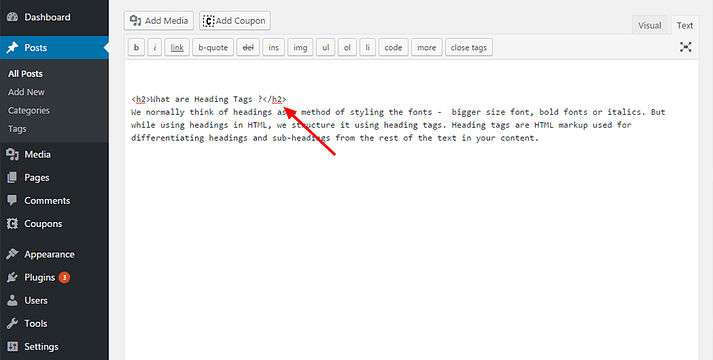
Use H3 for breaking up each H2 content. Rarely do headings reach the H4 level or beyond.
Why You Should Use Heading Tags?
Headings in webpages perform pretty much the same functions as they do in a print format. However, when it comes to webpages, headings are not just about appearance. They also help search engines to find the page. Google scans your post for content relevant to the searched words, and looks within the heading tags to see what the content is all about. We should make it easier for Google to find those words.
A title tag informs both users and search engines what the topic of a particular page is. Ideally, you should create a unique title for each page on your site. Heading tags tell a search engine how the various text blocks are connected and their interrelation. Once you know this, it’s easy to understand why your keyword must find a place within the tags. Google perceives this content as most relevant for the search and this will likely improve your search engine rankings.
To say that heading tags are crucial for SEO rankings would be overstating it. To say that heading tags add SEO value is more appropriate. In the last few years, more weightage is being given to authoritative content as a ranking factor. However, Google finds the keywords more easily, if they are wrapped in heading tags. And hence heading tags are an important on page SEO factor that you do not want to overlook while optimizing your webpages.
If you’re looking for ways to improve SEO on your website, look up our earlier post on Getting Started with WordPress SEO.
WordPress Heading Tags – Best Practices
- Normally we use only one H1 tag for a page, and you’ll most likely find it for the heading.
- H1 to H3 tags should suffice on most pages. H4 – H6 tags may be stretching it a bit, unless the page is really text heavy.
- Maintain hierarchy while using the heading tags, meaning use the tags in numerical order H2, followed by H3, H4… Don’t skip a level.
- Ensure that your keyword is included in H2. This is because Google looks for keyword presence in the title and keyword density in the content while searching and ranking content. There’s no necessity for exact keyword match.
- Keep a limit for the number of words that you cram between the header tags. Don’t pack in whole sentences or paragraphs.
- It’s not advisable to use the same keywords in heading tags across different webpages on your site.
- Do not use header tags simply to make some elements standout. To style any specific element on your website, use CSS.
Adding Heading Tags in WordPress
You can add header tags in WordPress in 4 ways,
1. You can manually type the header tags in the Text Editor in WordPress.
2. You can just as easily do it using the Visual Editor.
The toolbar in the Visual Editor has many formatting options. You’ll see a single row of options with the Toolbar Toggle at the extreme right.
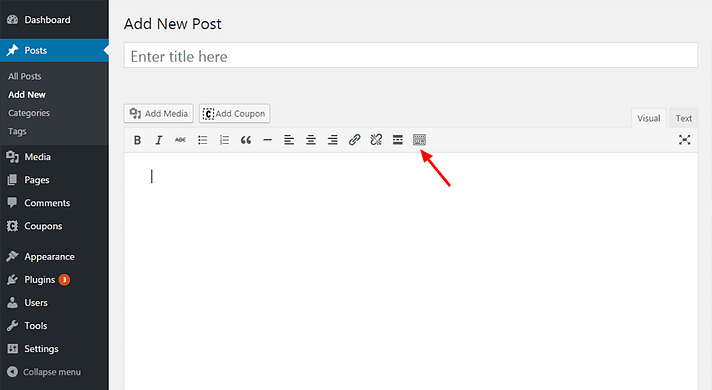
But there is second row (called Kitchen Sink!) that remains hidden. It appears only when you click the Toolbar Toggle. You’ll find the option for formatting text as headings in this row.
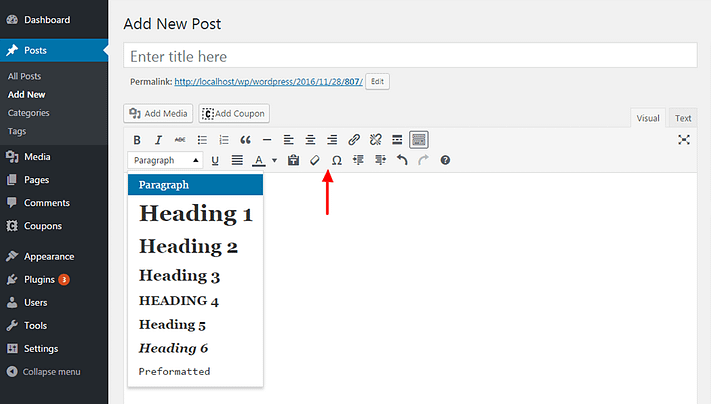
To add a heading, highlight the text and move to the ‘Paragraph’ option in the toolbar. Clicking on it will bring up a menu of the 6 heading tags and you can pick any one.
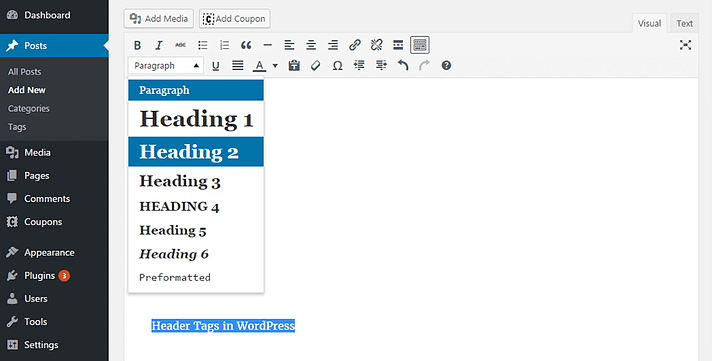
The text now appears as a heading.
3. If you’re more comfortable working with the keyboard, use Alt+Shift+Numbers 1-6.
To remove the heading tag, retype the same command or use Alt+Shift+7.
4. Staying with the keyboard, you can also use the octothorpe or hash keys:
- ## followed by text – for H2 tags.
- ### followed by text – for H3 tags.
- ###### followed by text – for H6 tags.
Final words
Heading Tags are important for webpages and can make a big difference to readability and search engine visibility. They need to be contextual, to stress the importance of content. Use them sparingly on a webpage to capture the essence of the content in a single phrase. Most of all, it’s so easy to practice headings, so let’s do ourselves a favor by using them.