
HOW TO – CREATE A TWITTER ACCOUNT
INTRODUCTION
Lorem Ipsum is simply dummy text of the printing and typesetting industry. Lorem Ipsum has been the industry’s standard dummy text ever since the 1500s, when an unknown printer took a galley of type and scrambled it to make a type specimen book. It has survived not only five centuries, but also the leap into electronic
Turn on coming soon
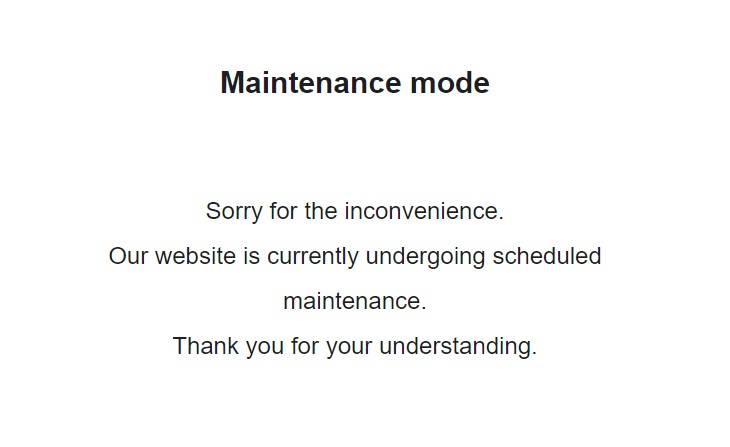
From time to time you may want to put your site into a state that excludes people from seeing it. To do this you put it into maintenance mode. When in this state people who visit your site will see a splash page with a message on it.
Here is the simplest way to achieve that.
1. Download the free plugin “WP Maintenance Mode”
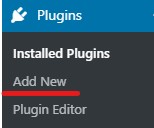
In WordPress navigate to the Plugins menu item and select “Add New”
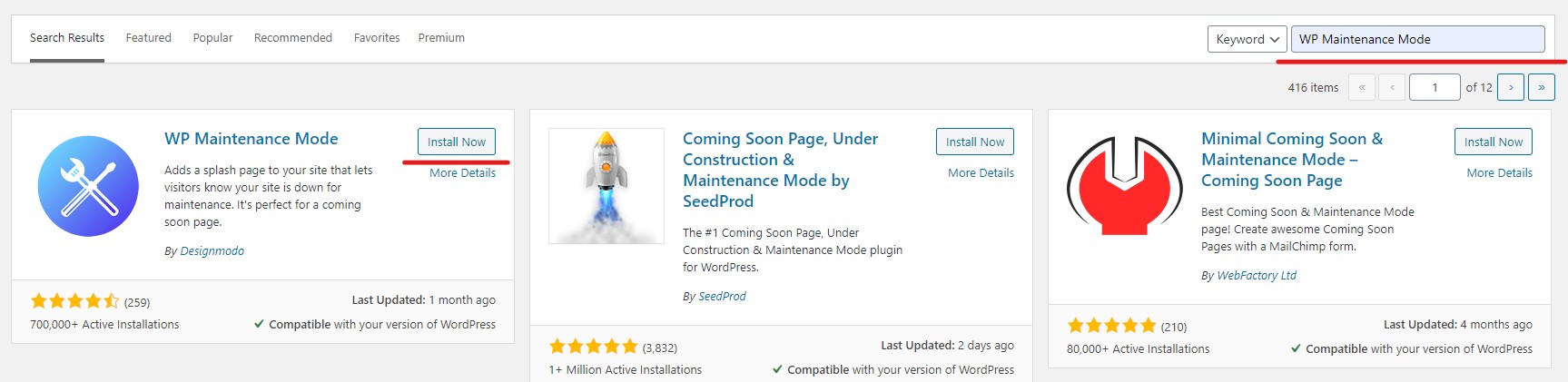
In the search bar on the right enter “WP Maintenance Mode”. WP Maintenance Mode. Select “Install Now” to install then press “Activate” to switch it on.
2. Setup the options for your maintenance page
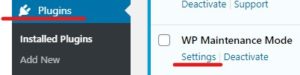
Click on the “Plugins ” menu item again and select “Settings” under “WP Maintenance Mode”.
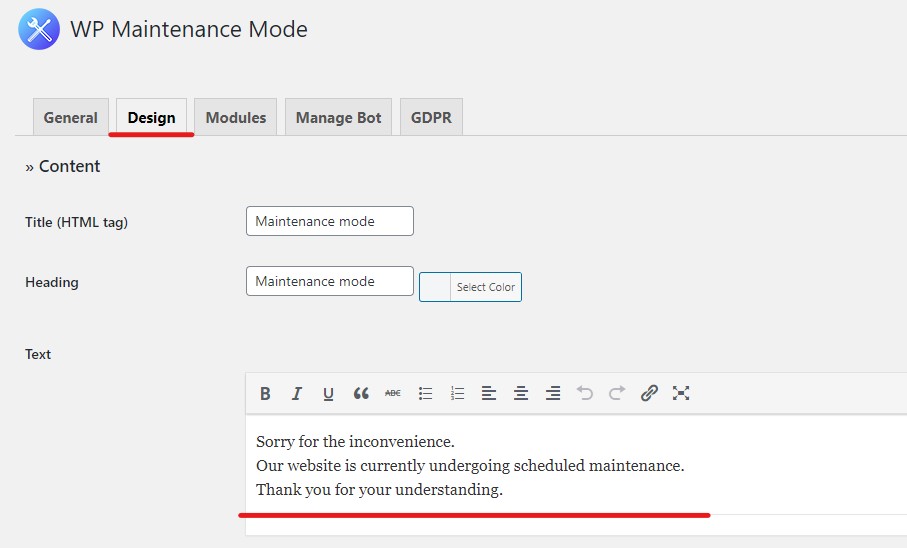
On the WP Maintenance Mode navigate to the “Design” tab and type in the text that you want to appear on your page. I’m going to leave the default.
3. Turn on maintenance mode
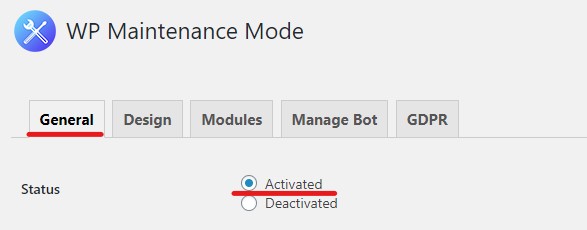
To turn on maintenance mode navigate to the General tab and select “Activate”.
NOTE: To turn off maintenance mode select “Deactivate”.
When someone navigates to your website the following page will be shown. Note that there are a great many more options you can tweak to create a more functioning and attractive page. These will be explored at a later date.
Congratulations. You now have an email host and you can access your email from any device.